
The short answer
Do not reset or unplug anything. In your first week, get the Control4 account moved to your name, find out who installed the system, change every password the previous owner had, and write down what you have. Then decide what to keep, update or replace, ideally with the original installer.
First, what not to do
The most expensive mistakes in an inherited smart home happen in the first few days, usually with the best intentions.
- Do not reset the controller or the remotes to start fresh. A Control4 system is programmed by a dealer for one specific house. A factory reset can erase that work, and rebuilding it takes a professional visit.
- Do not unplug the equipment closet or switch things off and on at random. Some devices take minutes to come back, and pulling the wrong plug can make a small problem look like a big one.
- Do not buy new equipment yet. Many inherited systems need a few fixes and a tidy up, not new hardware.
- Do not let the house's equipment leave with the seller. Before closing, confirm what stays: the controller, touchscreens, remotes, amplifiers and the network gear. Cable, satellite and internet provider boxes usually go back to the provider, so settle that list with the seller in writing.
Move the Control4 account to your name
Every Control4 system is registered to an owner's account. Until it is moved to you, the previous owner can still have access, and you may not be able to add your own logins.
If you can reach the previous owner
- Ask them to sign in to their Control4 customer account and change the account email to yours. Control4 notes on its page for owners that the account is tied to the email and password used to register it.
- Watch for a "Welcome to Control4" email, then sign in.
- Set a new password straight away.
- Ask them to sign out of the Control4 app on their phones and tablets.
If you cannot reach them
A Control4 dealer has to visit and register the system to you. It does not have to be the company that installed it: any certified Control4 dealer can do it, and Control4 lists them on its integrator search.
Not closed yet? Ask your agent or lawyer to put the Control4 account, the WiFi and router passwords, and the logins for cameras, locks and the alarm on the closing list. It is far easier to get them now than after the keys change hands.
Find out who installed it
The original installer knows what is inside your walls, how the system was programmed and how old each part is, so start with them. To find them:
- Ask the seller and the listing agent.
- Look for a sticker or label on the equipment rack, inside the equipment closet, or on the back of a touchscreen.
- Check any binder, invoices or manuals left in the house.
If the installer has closed, does not call back, or you would simply rather work with someone new, any certified Control4 dealer can take the system over.
Before anyone changes anything, ask them to back up the current programming. That one step protects everything that works today.
Change every password and remove old users
A smart home remembers everyone who ever had access. Treat this step like changing the locks.
- The WiFi network name and password, including the guest network
- The router's own admin password
- Camera apps and the video recorder: remove old users and set your own login
- Smart lock codes, keypad codes and garage door codes
- Garage door and gate apps
- The alarm monitoring account and the alarm code
- Thermostat and other device apps
- Music services on the system, such as Spotify, Apple Music or Sonos: these belong to the previous owner, so sign them out and add yours
- Voice assistants linked to the system
- Remote access for the previous installer: keep it only if they will keep looking after the system
Heads up: changing the WiFi password disconnects everything that uses WiFi, including some speakers, cameras and TVs. Plan to reconnect them yourself, or have your installer do it during the same visit.
Walk the house and write down what you have
It takes about an hour, and it makes every service call after it faster, because the technician starts from your list instead of from scratch.
In the equipment closet
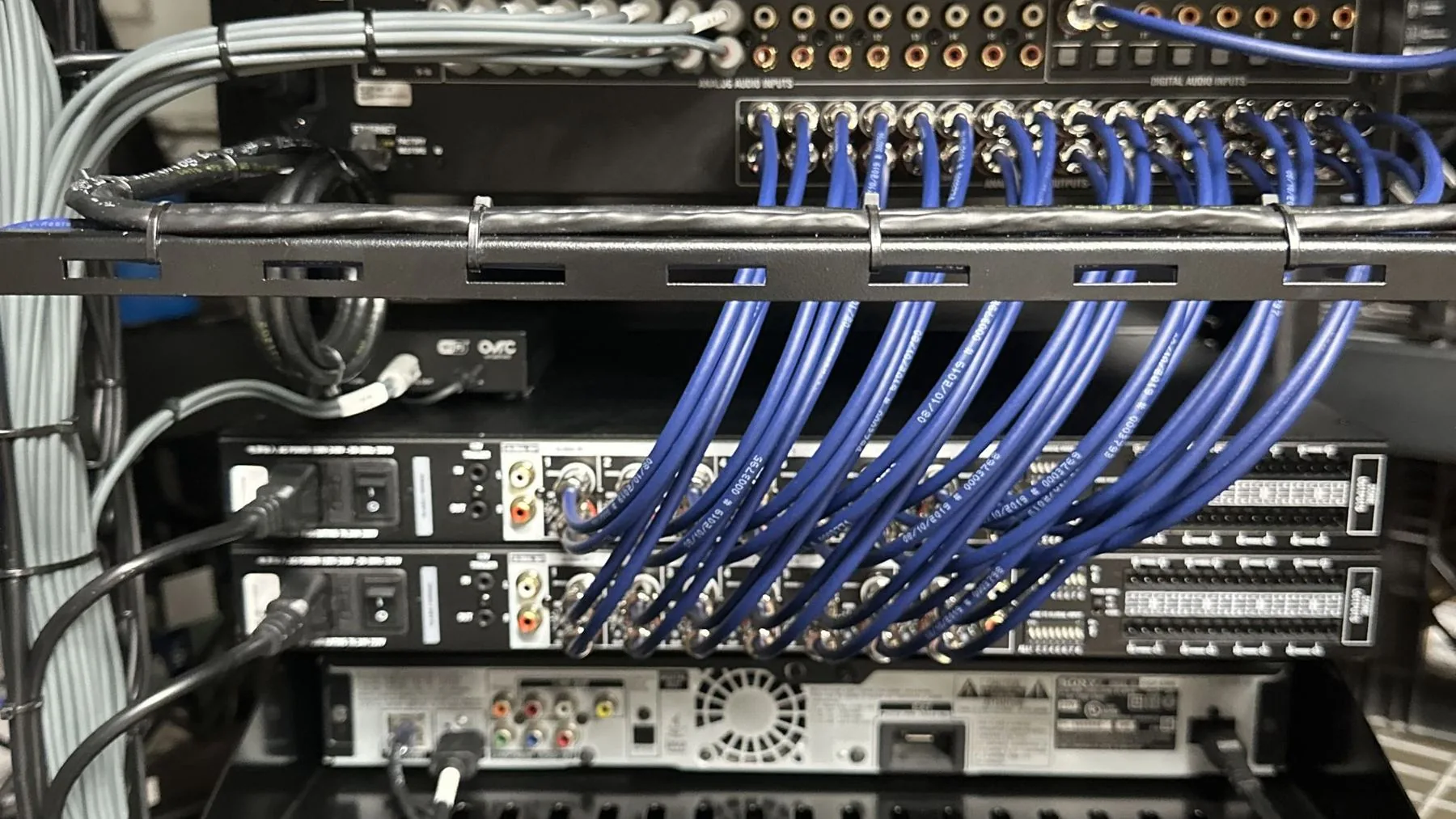
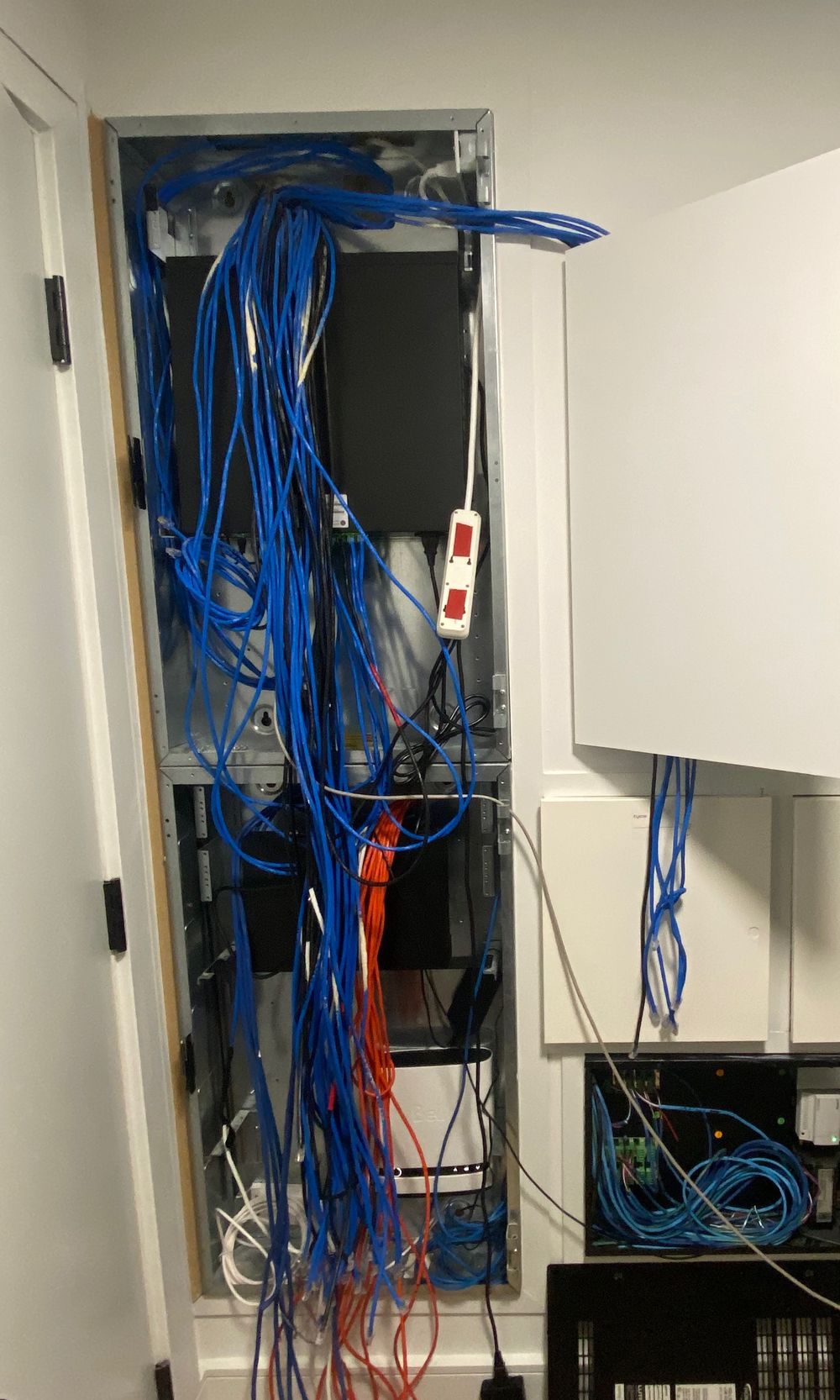
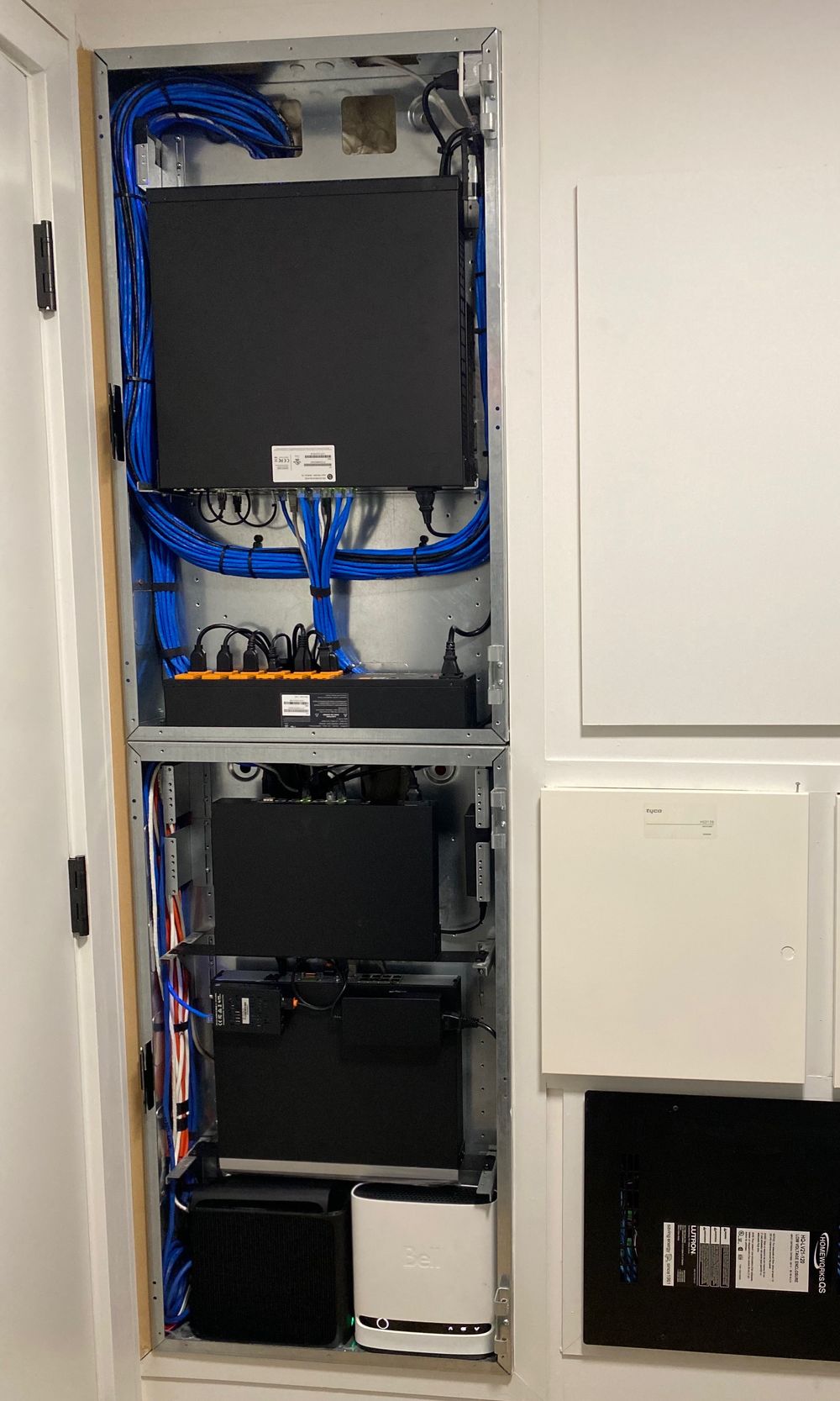
- Take photos of the front and the back of the rack.
- Write down the controller's model name, printed on its front, plus the router, network switches and amplifiers.
- Note any labels on the cables. Labelled cables are a very good sign.
In every room
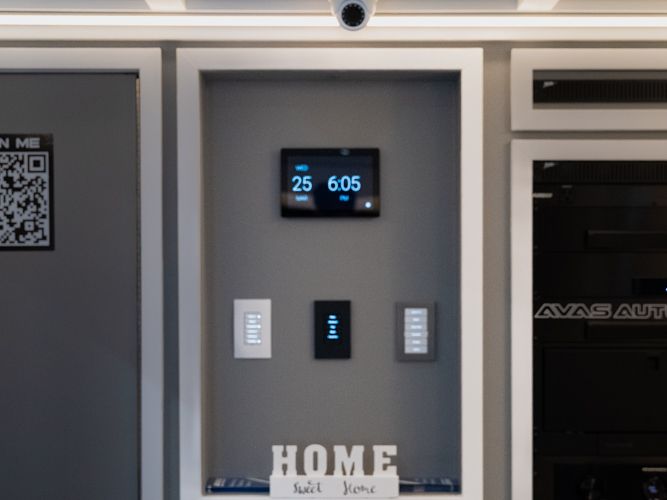
- Keypads: press every button and write down what it does.
- Touchscreens and remotes: note which rooms each one controls.
- TVs and speakers: check that each room plays music and video.
- Lights, shades, thermostats, cameras and locks: check that each responds in the app and from the wall.
Write down everything that does not work. That list is the most useful thing you can hand a technician.
If something stops working, check the internet first
A Control4 system is only as reliable as the network under it. When several things stop at once, the cause is usually the internet or the WiFi, not the Control4 system itself.
Changed internet providers?
This is the most common problem new owners run into. A new provider brings a new modem and router with a new WiFi name and password, and everything connected to the old network drops off. If you can, give the new router the same WiFi name and password as the old one. If not, plan a technician visit to reconnect the system.
A safe restart order
- Restart the modem and give it a couple of minutes.
- Then the router, and wait again.
- Then any network switches.
- Leave the Control4 controller for last, and only restart it if things still do not work.
Still stuck? Here is why a Control4 system usually stops working, and what to check.
Keep, update or replace?
Most inherited systems do not need to be replaced. Here is a simple way to decide.
| What you find | What it usually means | Next step |
|---|---|---|
| Everything works, and you know who installed it | A healthy system | Keep it. Ask for a walkthrough and a copy of the documentation. |
| It works, but the app feels slow and the controller is many years old | The hardware may be behind current Control4 software | Ask a dealer whether your controller runs the current software before replacing anything. |
| Some rooms or buttons do nothing, and there is no paperwork | Lost programming or a failed part | Have a certified dealer assess it, and back it up first. |
| You only use a few features | You may not need everything that is there | Keep what you use. Remove nothing until you have lived with it for a few weeks. |
A good dealer will tell you what to keep. Be careful with anyone who wants to replace everything before they have looked at what you already have.
Warranties rarely move with the house. The Control4 limited hardware warranty, for example, is non-transferable and does not cover labour. Treat inherited equipment as out of warranty, and ask the original installer what, if anything, is still covered.
Questions to ask any Control4 dealer
- Are you a certified Control4 dealer? (Control4's integrator search lists them.)
- Will you back up the current programming before you change anything?
- Will you label the equipment and give me a written list of what is installed?
- Who does the programming, and who do I call when something breaks?
- What would you keep, and why?
- Can you help remotely, or does every change need a visit?
Your first week checklist
- Do not reset, unplug or replace anything yet.
- Confirm which equipment stays with the house.
- Get the Control4 account moved to your email, then set a new password.
- Find out who installed the system.
- Change the WiFi, router, camera, lock, garage and alarm passwords.
- Remove the previous owner from every app and account.
- Photograph the equipment closet, front and back.
- Walk every room and list what works and what does not.
- If you change internet providers, keep the same WiFi name and password, or plan a reconnect visit.
- Book a walkthrough with the original installer or a certified Control4 dealer.
Taking over a Control4 home in Toronto or cottage country?
AVAS Automation does a free assessment of inherited systems: we back up what is there, label it, and tell you plainly what to keep. How a takeover works.
Common questions
Is my Control4 system still connected to the previous owner?
Until the account is moved, it can be. The Control4 account is registered to the previous owner's email, and their phones may still have the app. Ask them to change the account email to yours, or have a certified Control4 dealer register the system to you on site.
Can I change my Control4 system myself?
Partly. Control4 says that after the install you can adjust and personalize many features yourself, like favourites, rooms and music, in the Control4 app. New devices, keypad buttons and deeper programming are done by a Control4 dealer, who can back up the system before changing anything.
What if the company that installed it has closed?
Any certified Control4 dealer can take the system over. Ask them to back up the current programming, label the equipment and give you a written list of what is installed, so whoever works on it next can see exactly how it was set up.
Do I have to replace an older Control4 system?
Usually not. Many older systems keep working well for years, and parts can often be updated one at a time. Ask a dealer whether your controller runs the current Control4 software, and replace only what holds the rest back. A good dealer starts with what you already have.