
The short answer
To troubleshoot Control4, first work out what stopped and what changed, such as a power outage, a new modem or new batteries. Restart only the part that stopped, like one touchscreen or the modem, and give it a few minutes. Never factory reset anything or press a reset pinhole: that can erase your installer's programming.
Do this first, and what not to do
Start here
- Work out whether one thing stopped or everything did. One light, room or remote points to that device. Everything at once points to the power or the internet.
- Think about what changed in the last day or two: a power outage or storm, a new modem, new batteries, a TV that was moved. Each has its own section below.
- Check the room name at the top of the app or touchscreen. If it shows another room, the TV or light you want will not respond.
- Give it a few minutes. After an outage, the network and the lighting both need time to settle.
Do not do this
- Do not factory reset anything, whether it is the controller, a touchscreen, a remote, a keypad or the internet modem. Control4 warns that a factory restore of the controller removes the project, which is everything your installer programmed. Getting it back takes a visit.
- Do not press a reset pinhole. On a T5 touchscreen, holding it for 5 seconds starts a factory restore. On the controller, it is the factory reset.
- Do not tap button patterns you found online. Some tap sequences reset a keypad or drop it off the system, and then your installer has to set it up again.
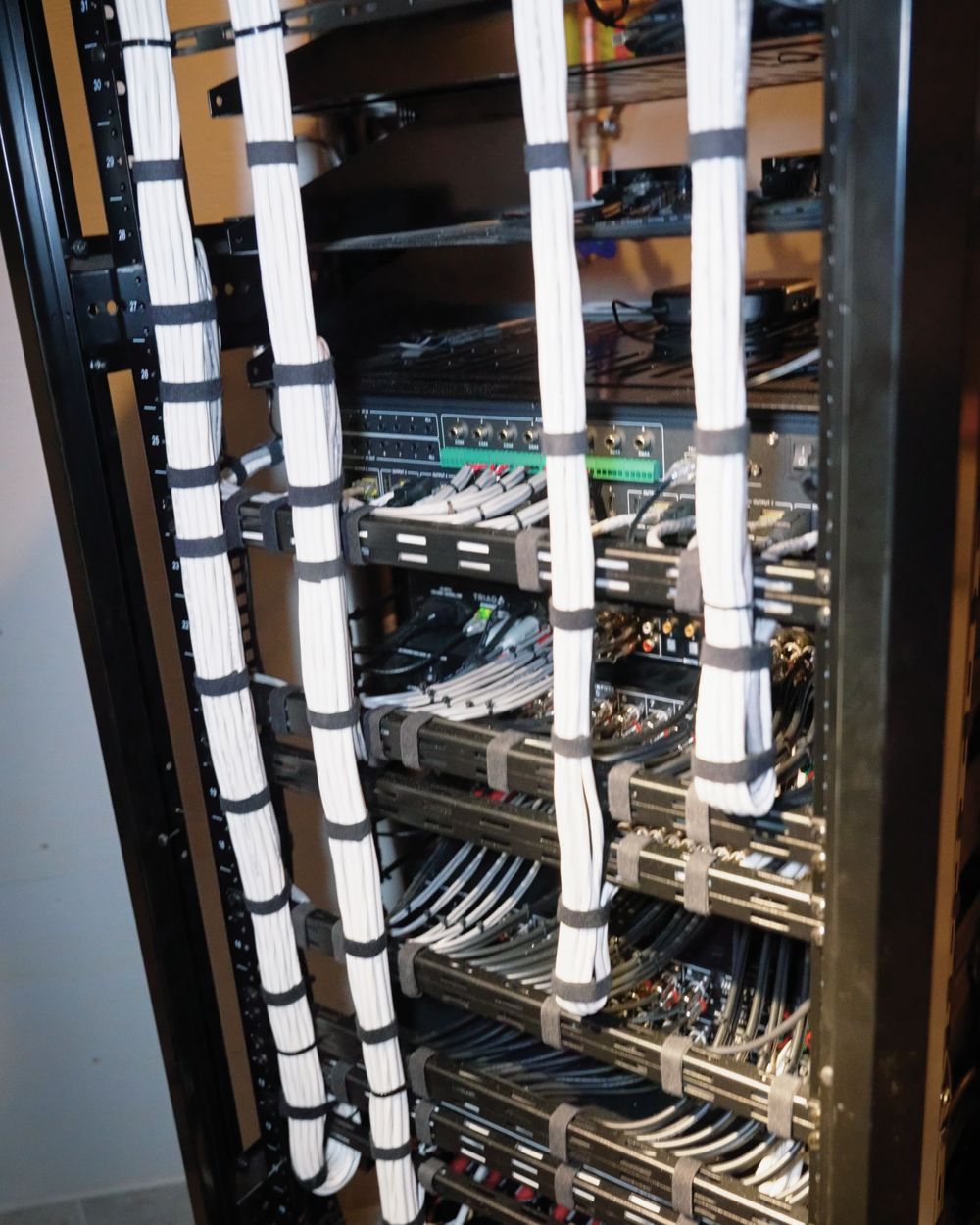
- Do not unplug the whole equipment rack or move cables in it. Your installer's program expects every device where it is.
- Do not unplug anything while the controller is updating. On CORE controllers, a Link light flashing blue about every 2 seconds means an update is running.
- Do not use the reset button on the modem or router. Restart it with the power cord. A reset wipes its settings, and your Control4 system depends on them.
- Leave the electrical wiring alone. Do not take a keypad or dimmer off the wall, or open the controller, an amplifier or a power unit. In Ontario, only a Licensed Electrical Contractor can be hired for electrical work in a home.
Lights or keypads not responding
Likely cause: the bulb, a dimmer that has lost power, or new wireless gear near the Control4 equipment.
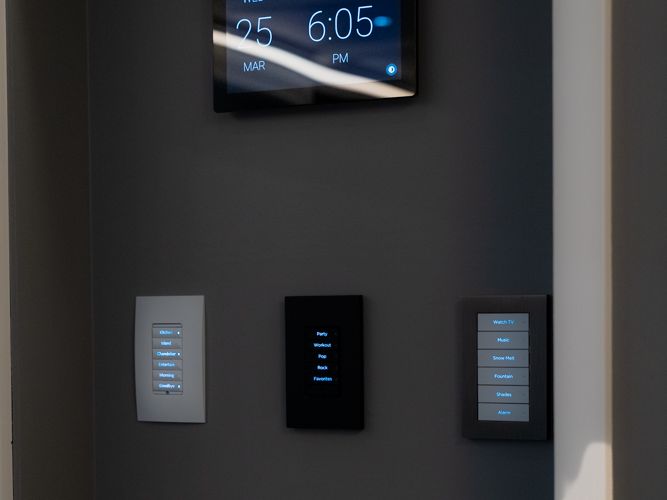
- Look at the keypad or dimmer. If none of its small lights are on, it has no power.
- Check that the bulb is not burned out and is screwed in tightly.
- Look at the bar along the top of the dimmer. If one side sticks out, press that side until it snaps back into place. That bar is the air gap, and while it is out, the light has no power.
- Check your electrical panel for a breaker that is off or tripped, and switch it back on once.
- Restart the keypad or dimmer by tapping its top button 15 times. On a 6 button keypad, use the top left button. Control4 says this restarts the device without clearing its programming.
- If the lights work but respond late, look for anything new near the Control4 equipment, such as a WiFi router, a mesh WiFi pod, a baby monitor or a cordless phone base. Note where it is for your installer.
Control4 says a WiFi router or access point should sit at least 5 metres from the Control4 device that runs your lighting, because one right beside it can block lighting commands altogether. Other wireless gear, and even a microwave, can make the lights wait.
Air gaps and breakers. The air gap only disconnects the light, so never take a dimmer or keypad off the wall. Control4 says to turn the power off before anyone services one, and to have a licensed electrician install it. A breaker that keeps tripping also needs an electrician: the Electrical Safety Authority says it can mean an overloaded circuit or faulty wiring, a shock and fire hazard. On a Lux dimmer, one purple flash means the air gap is pulled and red flashing means a fault. Take a photo and call your installer for either.
It worked if the light responds from the keypad and from the app. Still not working? Write this down, then call.
Control4 app not working
Likely cause: the phone's connection. At home, the Control4 app reaches your system over your home WiFi.
- Check that the phone is on your home WiFi, not mobile data or a guest network.
- On an iPhone, open Settings, tap Privacy & Security, then Local Network. If Control4 is listed, make sure it is switched on.
- Close the app completely, then open it again.
- Update the app from the App Store or Google Play.
- Restart the phone.
- If the phone uses a VPN, turn it off while you are at home.
Works on one phone but not another? Go through the steps on the phone that fails and compare its settings with the one that works.
Asked to sign in? Use the email and password for your Control4 customer account. If you do not know them, ask your installer, and if you do not know who that is, Control4 can tell you. If you bought the house with the system in it, the first week checklist for a new Control4 home covers moving the account to your name.
Just had the system updated? Control4 says a system on OS 3 needs the Control4 for OS 3 app, and a system still on OS 2 needs the older Control4 for OS 2 app. Away from home, how the app connects depends on how your system was set up, so ask your installer.
It worked if the app shows your rooms and a light responds when you tap it. Still not working? Write this down, then call.
Not working after a power outage
Likely cause: the internet equipment has not come back properly, or it is still starting. The network alone can take a few minutes.
Restart the internet in order
- Wait a few minutes before you touch anything.
- Check the internet on your phone over your home WiFi. If websites load, skip to the controller below.
- Unplug the power cord from the modem and from the router. Leave every other cable where it is.
- Wait at least 30 seconds.
- Plug the modem back in, and only the modem.
- Wait until its lights are steady, which can take a few minutes. On a Bell Home Hub or Giga Hub, that means solid and all the same colour.
- Plug the router back in, then give everything a few more minutes.
If your internet provider gave you one box that does both jobs, unplug just that box, wait 30 seconds and plug it back in.
Then check the controller
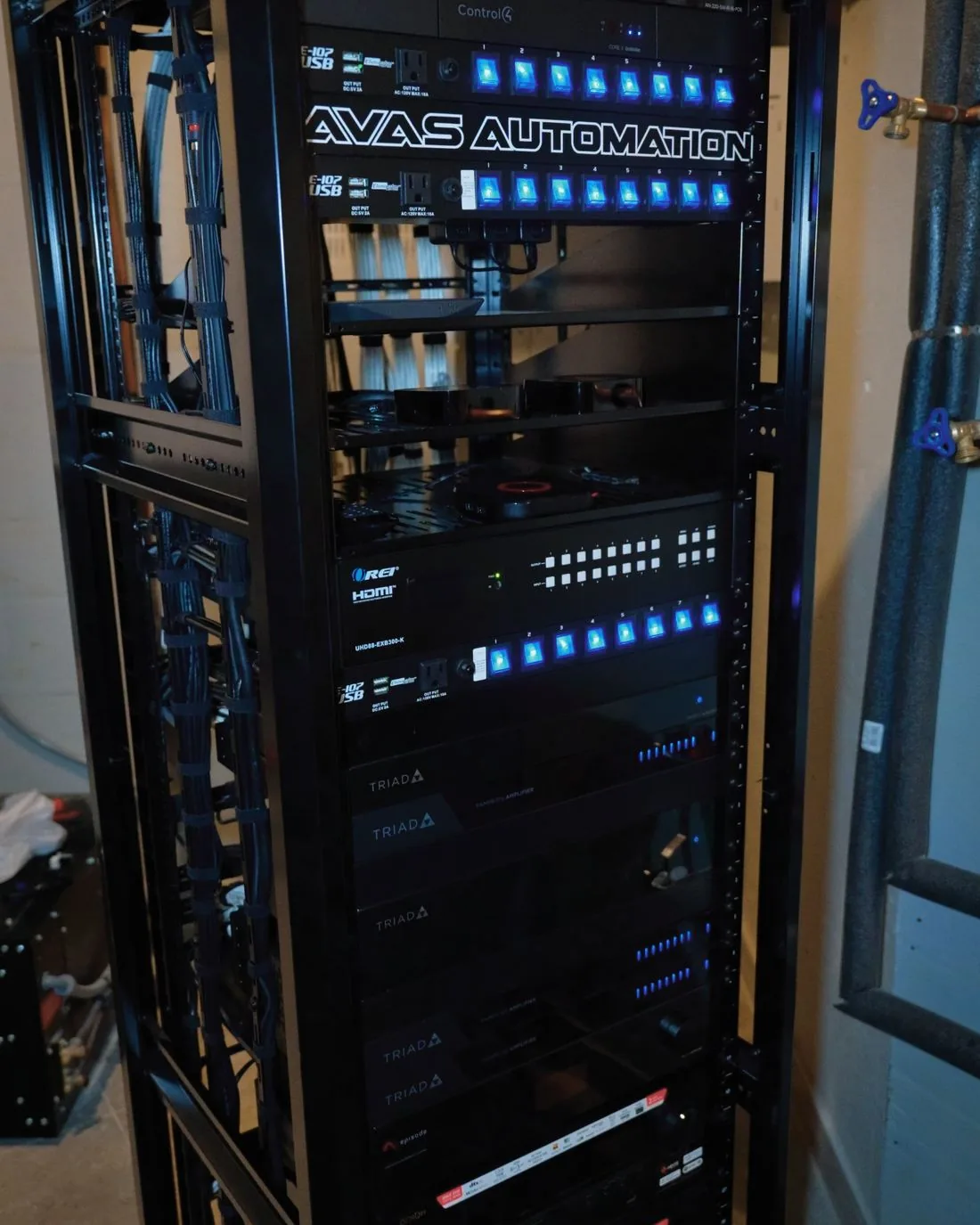
Find the Control4 controller in your equipment rack and look at the small lights on its front. On Control4 CORE controllers (older models have different lights):
- Link and Power both solid blue: connected and running normally.
- Link flashing blue about every 2 seconds: updating. Leave it alone until it stops.
- Caution flashing orange about every 2 seconds, with only Power also lit: no network address. That points to the router or a cable, not the controller.
If the internet is back and the Link light is still off, leave the controller and the rest of the rack alone, and call your installer.
Still dark after a storm? If the equipment in your rack has no power at all after a surge, its surge protector may have shut off to protect it. Do not plug the equipment into another outlet to get around it. Control4's guide for its WattBox power units says one that cut out after a surge has to be replaced, even if it restarts.
It worked if websites load on your phone, the controller's Link light is solid blue, and the lights answer the app. Still not working? Write this down, then call.
After a new router or internet provider
Likely cause: a Control4 system often relies on settings stored in your old router, such as a fixed address for each device. A new router starts without them, even if the WiFi name is the same.
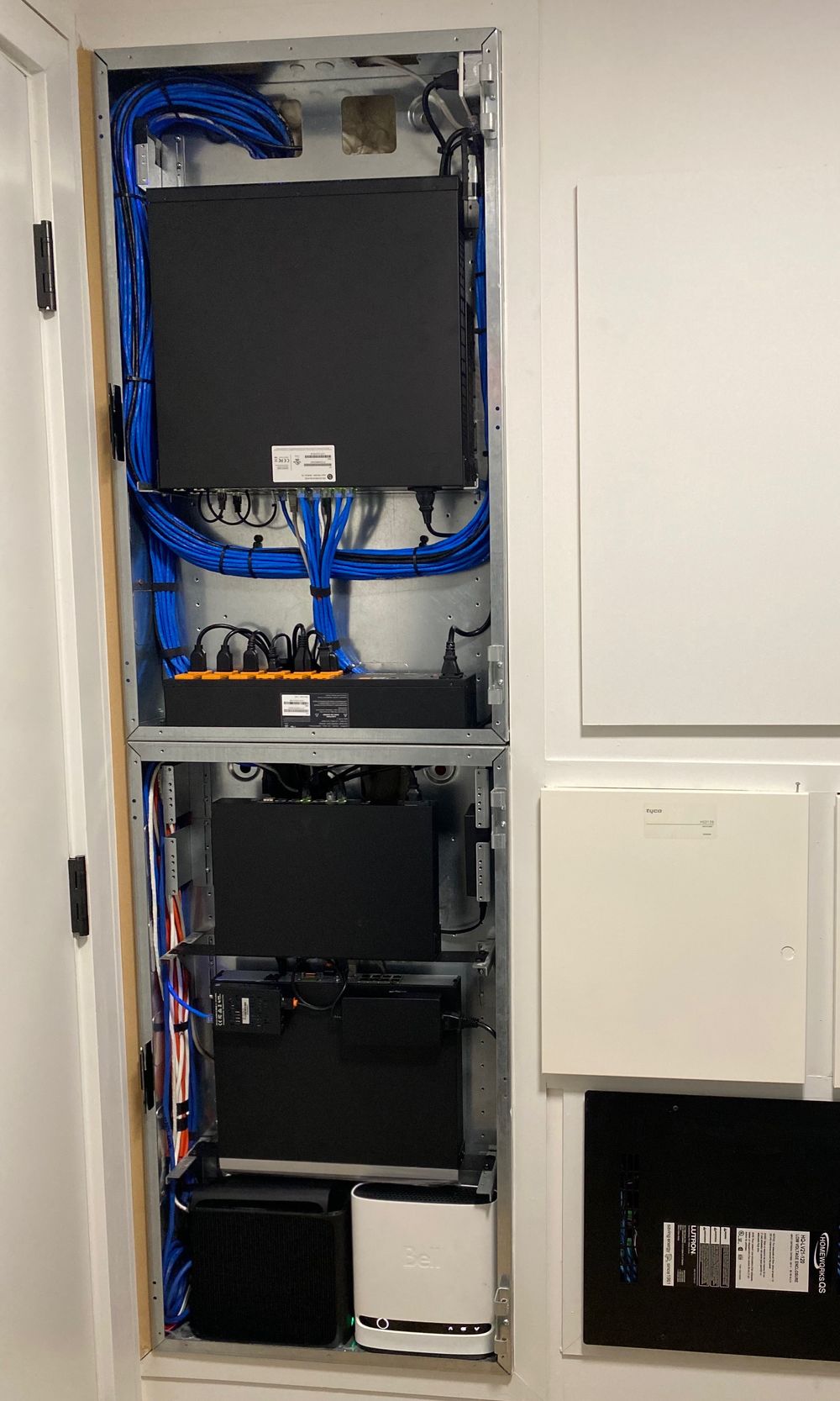
- Find the new WiFi name and password. On a replacement modem, they are printed on the modem itself.
- Join the new network on your phone, then try the Control4 app.
- Look at where the new box was put. If it sits right next to the Control4 equipment, tell your installer, since Control4 says a WiFi router should sit at least 5 metres from the Control4 device that runs the lighting.
- Call your installer and tell them what changed and when. Setting up the new router for Control4 is their job.
If you can give the new WiFi the same name and password as the old one, most WiFi devices reconnect by themselves. Some smart home devices still need reconnecting by hand, which is normal.
Equipment on network cables can stop working too. If the provider's new box is also a router and sits in front of your installer's router, the two can clash and cut your system off from the internet.
Switching providers soon? Tell your installer before the install day, and ask the provider's technician not to reset or rewire anything in your equipment rack.
It worked if your phone is on the new WiFi and the app finds your system. Still not working? Write this down, then call.
Touchscreen frozen or not working
Likely cause: the screen has frozen and needs a restart.
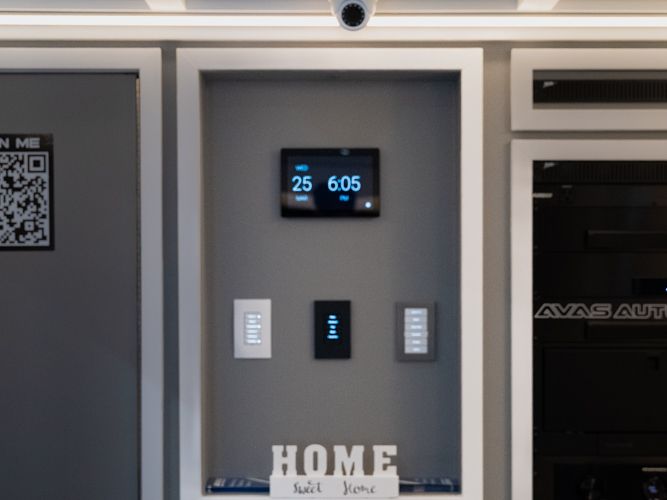
- On a T5 touchscreen, pull down from the top of the screen to open Quick Settings, then tap Reboot Touchscreen.
- On a T4 in-wall touchscreen, press and hold the power button for at least 10 seconds, until the screen turns off.
- Wait. The Control4 logo can take 10 seconds to appear.
- If there is still no logo after 30 seconds, call your installer. Control4 says a screen that will not start after a restart may need a factory reset, and that is their job.
Leave the pinhole alone. The small reset button behind the trim ring of a T5 restarts it with one quick press, but holding it for 5 seconds starts a factory restore. Quick Settings is the safe way to restart.
It worked if the screen shows your rooms and responds to a tap. Still not working? Write this down, then call.
Control4 remote not working
Likely cause: the batteries, a remote set to another room, or a remote that was asleep.
After a battery change
The SR-260, the Control4 remote that takes four AA batteries, has a few rules of its own:
- Use AA alkaline batteries. Control4 does not support rechargeable ones in this remote.
- Put in four new batteries. Do not mix new and old.
- After you take the old batteries out, wait 20 seconds before putting the new ones in.
- Point the plus ends toward the bottom of the remote, as the diagram in the battery compartment shows.
Halo remote
From deep sleep, the first press on a Halo only wakes it, so press again to send the command. Control4 lists this as a known issue. If a Halo stays stuck on the Control4 start screen, Control4 says turning it off and on fixes it. Older Halo software also failed to reconnect after a power outage, so if yours drops out after every outage, ask your installer whether it is up to date.
Neeo remote
- Restart it: press and hold the power button until the power menu appears, then tap Restart.
- Check the room. A Neeo stays on the last room you picked, even after a restart.
- Charge it only on its own dock, with the power supply that came with it.
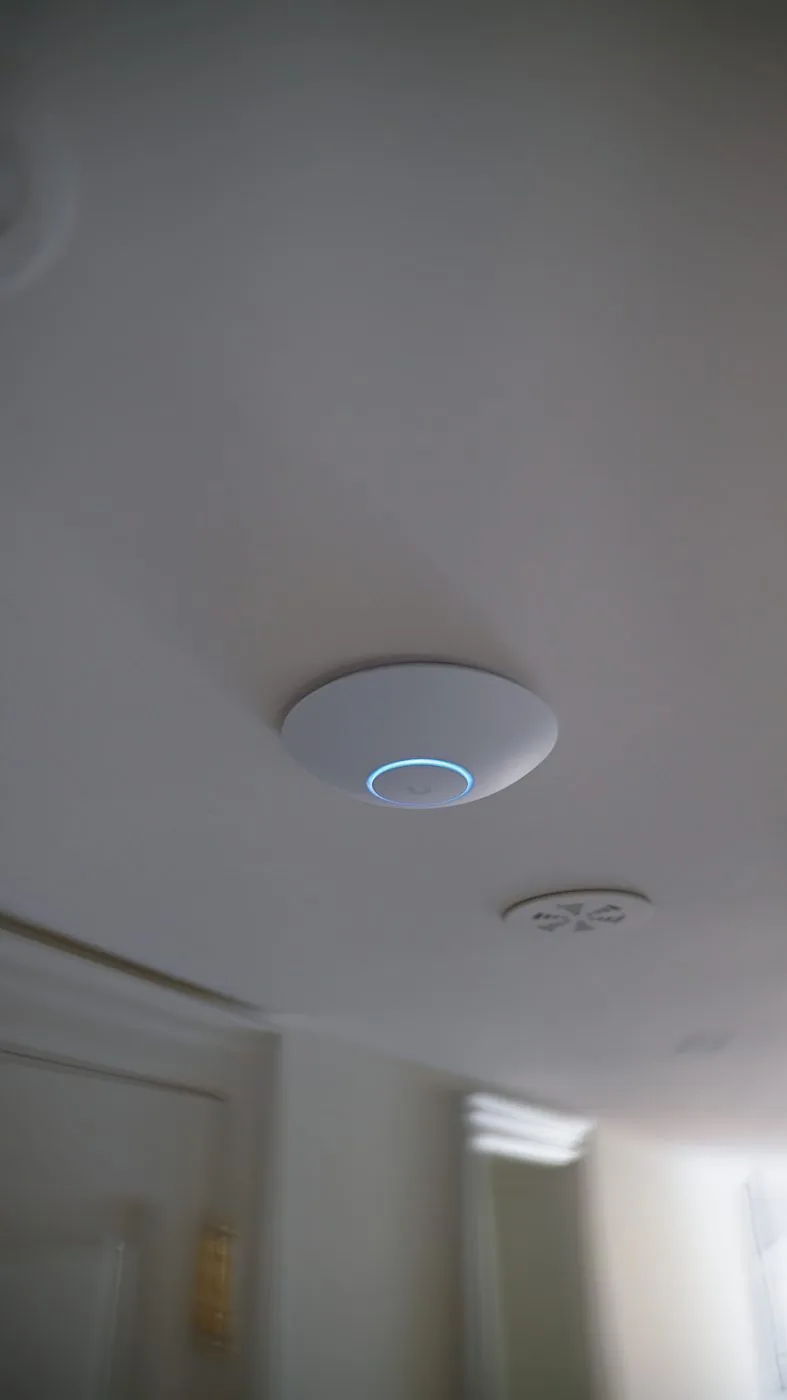
Halo and Neeo remotes run on WiFi, and the Neeo only uses the 2.4 GHz band. If a remote keeps dropping out in the same rooms, ask your installer to check the WiFi signal there. Adding wired WiFi access points is one way to fix weak spots.
It worked if a button press changes something in the room, on the first or second press. Still not working? Write this down, then call.
TV or music not switching
Likely cause: the wrong room is selected, or the small emitter that sends commands to the TV has come loose.
- Check the room name at the top of the app, touchscreen or remote, and tap it to pick the right room.
- Turn the room off, wait a few seconds, then tap Watch or Listen and pick the source again.
- Look on the front of the TV and the cable or satellite box for a small stick-on emitter at the end of a thin wire. If one has fallen off, that is probably why the TV ignores you. Press it back where it was.
- If someone changed the input with the TV's own remote, switch it back with Control4, so the system knows which input is on.
With a Neeo remote you do not need to aim at the TV. Control4 says the infrared signal comes from the system, not from the remote.
A new TV, soundbar or streaming box, or one moved to another room, needs your installer. The system's program has to know about a device before Control4 can control it.
It worked if the TV changes input and the volume moves when you use the app or remote. Still not working? Write this down, then call.
Sonos or a music service missing
Likely cause: a problem with the music service account, or Sonos speakers that lost the network after an outage or a new router.
A music service will not play
- Open the service's own app, such as Spotify or Apple Music, and check that it plays there.
- In the Control4 app, select the service's icon and follow the prompts to enter your account details.
- If you changed that service's password recently, sign in again inside Control4 with the new one.
Control4 says you can add streaming services yourself with your own account, and that some services need extra equipment. Your own music files on a drive are different: if they go missing after the controller restarts, your installer needs to rescan them.
Sonos speakers missing
- Unplug the speaker's power cord.
- Wait 10 seconds, then plug it back in.
- Give it one minute to start up.
After a new router or a new WiFi password, Sonos needs the new network details. Open the Sonos app and wait while it searches. When it shows "No products found", go to Settings, select Visit Help Center, then Update Network, and follow the instructions. Sonos asks you to keep the speakers off network cables during this step, so if your installer wired yours, call them first.
It worked if the speaker or service shows up in the Control4 app and plays in the room you picked. Still not working? Write this down, then call.
What to write down before you call
Your installer is the first call. Control4 sends support requests to the company that installed your system, and its getting help page explains how to find their contact details. These notes help them find the problem faster.
Installer not answering, or no longer in business? Here is how Control4 dealer support in Toronto works, and the questions to ask a smart home installer if you are choosing someone new.
- What stopped, in one sentence, and roughly when it started
- Which rooms and which things are affected, and what still works
- Anything that changed: a power outage or storm, a new modem, a new TV or speaker, painters or cleaners, new WiFi gear near the equipment
- What you have already tried, so nobody repeats it
- Whether the internet works on your phone over WiFi
- A photo of the lights on the front of the Control4 controller
- A photo of any keypad or dimmer light that looks wrong, especially red or purple
- On a Neeo remote, the serial number: tap Settings, then About
- The best number and time to call you back
Tried everything on this page?
Whoever installed it, we can take a look. Call (416) 800-6714.
Already an AVAS client? Client support
Common questions
Why did my Control4 system suddenly stop working?
Start with what changed. A power outage, a new modem or router from your internet provider, new batteries in a remote, or a TV that was moved can each stop part of a Control4 system. If one thing stopped, start with that device. If everything stopped at once, start with the power and the internet.
How do I restart my Control4 system?
Restart only what stopped. A T5 touchscreen has Reboot Touchscreen in Quick Settings, pulled down from the top of the screen. For the internet, restart the modem first, then the router. Leave the Control4 controller to your installer, and never press a reset pinhole on anything, because a factory reset erases the programming.
Why is Control4 not working after a power outage?
When the power comes back, everything restarts at once, and the network can take a few minutes, so wait first. If the internet is still down, unplug the modem and router, plug in the modem first, wait for steady lights, then plug in the router. Give the Control4 lighting a few more minutes to settle.
Why is the Control4 app not working on my iPhone?
At home, the Control4 app reaches your system over your home WiFi, so first check the iPhone is on that network, not mobile data. An iPhone also makes apps ask permission to find devices on your network: open Settings, tap Privacy & Security, then Local Network, and if Control4 is listed, make sure it is switched on.
Why does my Control4 remote not work after new batteries?
On the SR-260, the Control4 remote that takes AA batteries, use four new alkaline ones. Control4 does not support rechargeable batteries in it and says not to mix new and old. Take the old ones out, wait 20 seconds before putting the new ones in, and point the plus ends toward the bottom of the remote.
Should I factory reset my Control4 controller or keypad?
No. Control4 warns that a factory restore of the controller removes the project, which is everything your installer programmed, and rebuilding it means a visit. Touchscreen pinholes and keypad tap sequences can reset those devices too, and disconnect them from the system. Restart the one device that stopped instead, and leave resets to your installer.
Sources
- Control4: Getting help
- Control4: Changing rooms
- Control4: Listen basics
- Control4: Neeo remote FAQ
- Control4: Using the Neeo remote
- Control4: SR-260 System Remote Control user guide
- Apple Support: If an app would like to connect to devices on your local network
- Sonos: Reboot Sonos products
- Sonos: Connect Sonos to a new router or WiFi network
- Rogers: How to power cycle your equipment
- Rogers: How to restart or reset the Rogers Xfinity gateway
- Rogers: Modem replacement FAQs
- Bell: How to reboot your Home Hub modem
- ESA: Homeowner handbook
- ESA: Permit education