
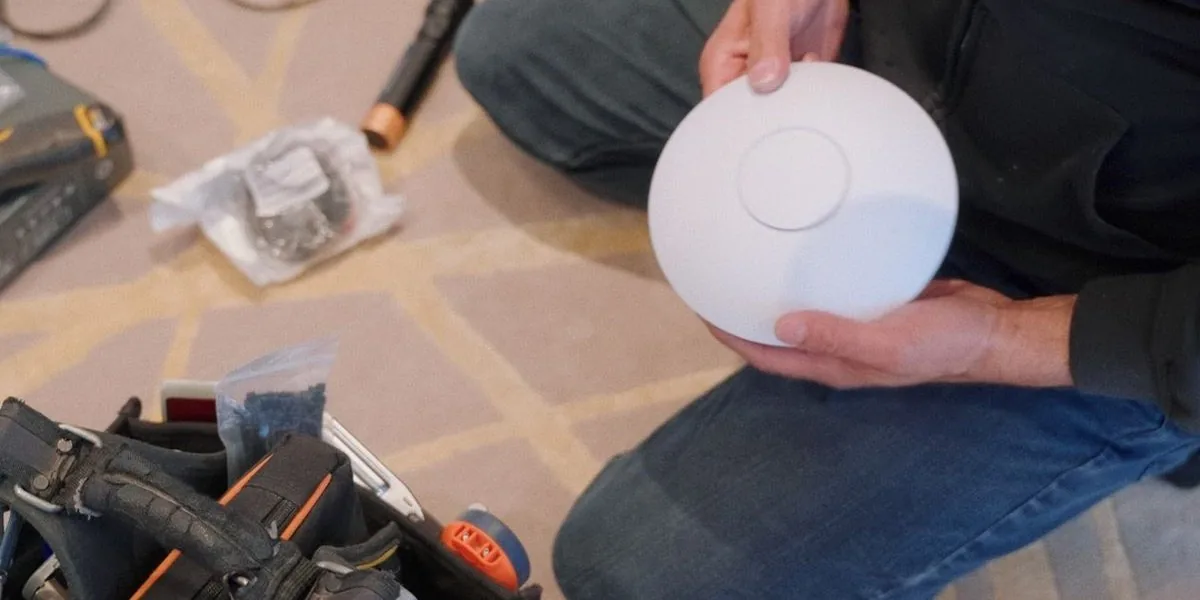
The short answer
WiFi dead zones usually come from where the router sits and what the signal has to pass through: plaster, brick, concrete and floors. Test on WiFi, not mobile data, then move the router out of the basement or cabinet to a central, raised spot. Still weak? Add mesh points halfway, or wired access points in larger or older homes.
Measure it first, on WiFi, not mobile data
To find a dead zone, run two speed tests with the same phone, on WiFi only: one beside the router and one in the weak spot. Do it before you buy anything. A phone in a weak spot can quietly lean on mobile data, so a speed test in the backyard may be measuring mobile data, not your WiFi.
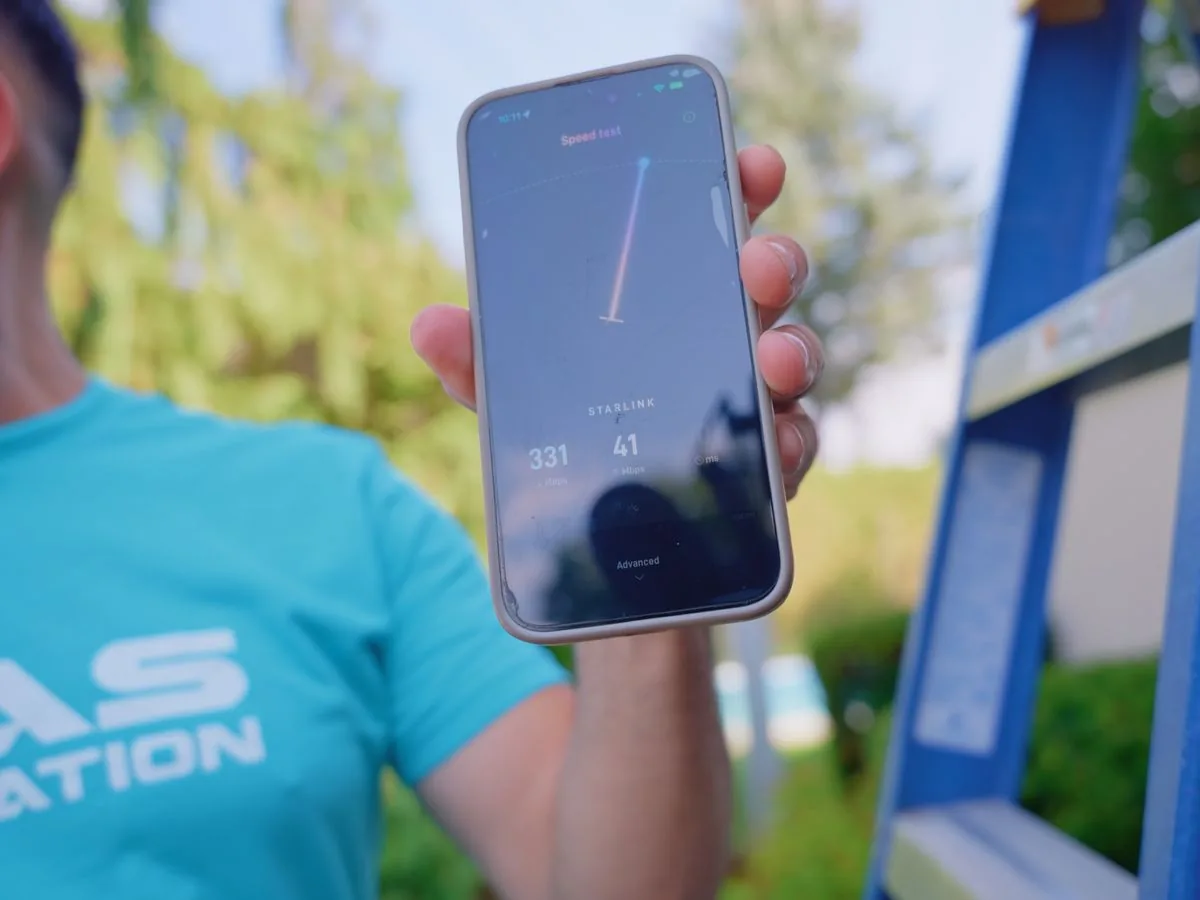
- Use the same phone for every test and close other apps. Bell suggests disconnecting other devices while you test.
- On an iPhone, turn off Connectivity Assist for the test: open Settings, tap Wi-Fi and scroll down. Apple says it uses mobile data to improve your connection when WiFi is slow or unusable, in places like your backyard or driveway. On an iPhone that has not been updated, the same setting is called Wi-Fi Assist and sits in Cellular settings. Turn it back on after. On any phone, you can also turn off mobile data for the test.
- Run one speed test standing beside the router and one in the weak room. Write both numbers down.
- Check your provider's app too. The Rogers Xfinity app rates each device's connection green, yellow or red, the MyBell app has a Wi-Fi checkup, and the Starlink app's Device to Router test measures the WiFi on its own.
You know where you stand when you have two numbers from the same phone, on WiFi only. If the test beside the router is already slow, the WiFi is probably not the main problem: check the speed to the home in your provider's app, and try another phone or laptop.
Why some rooms get no WiFi
WiFi is a radio signal. It gets weaker with distance, and every wall and floor it passes through takes some of it away. Dead zones, or dead spots, come down to three things.
What the walls are made of
- Hardest: metal, which Apple rates as very high interference, its worst category. Apple also says a concrete floor with metal in it can cause poor WiFi on the floor beyond.
- Hard: plaster and concrete, which Apple rates as high interference, and brick and stone. eero, the mesh WiFi maker, singles out older houses with plaster, lath or chicken wire in the walls as particularly hard for WiFi, which describes many older homes across Toronto.
- Easier: wood and glass, which Apple rates as low interference.
Where the router sits
The router has to connect to the modem, which can limit where it goes, so it often ends up in a basement corner or a cabinet. Those are the first two places Rogers tells customers to avoid. The signal travels mainly along the level the router sits on, so a router on a basement floor has to push through the floor above to reach the rest of the house.
Rogers says that, on average, a centrally placed modem should cover a home of about 1,600 square feet (about 150 square metres) or less, but that building materials, interference and use can cause problems in homes as small as 800 square feet (about 75 square metres).
Bands, interference and old devices
- 2.4 GHz reaches farther, but it is slower and busier. 5 GHz is faster but does not pass through walls as well. 6 GHz is faster again and works best with a clear line of sight to the router.
- Interference. Microwave ovens, cordless phones, baby monitors, fluorescent lights and other WiFi networks all compete for the same air. Starlink says to keep its router at least 6 metres (20 feet) from microwaves, refrigerators, metal, concrete and brick.
- Neighbours. In condos and close-set homes, the networks next door can affect your WiFi, Rogers notes.
- Old devices. Rogers says a phone or laptop over 5 years old may not support the latest WiFi, and Starlink says older devices can slow the network for everyone.
What to try yourself, in order
Work down this list and retest after each step, in the same two spots.
1. Move the router
Start here. eero says moving the modem and router out of the basement to a central spot can speed up the whole network with that one change.
- Central, on the floor where you use WiFi most, ideally the middle floor.
- Raised, on a shelf or table, never on the floor.
- In the open: not in a cabinet, a media console or a closet, with its vents clear.
- Upright if it is made to stand, and away from the microwave, metal shelving and large appliances.
Cannot move the modem? Ask your provider whether it can be moved. A longer network cable from the modem to the router or the main mesh point is another way to bring the WiFi up into the house.
It worked if the speed in the weak room comes closer to the speed beside the router.
2. Restart, then give it a day
Unplug the router's power cord for 10 seconds, then plug it back in. Bell says its pods can take up to 24 hours to finish tuning after one is added or unplugged, so if you have pods or mesh points, judge the result a day later.
3. Update
Turn on automatic updates in the router or mesh app, and keep your phone and laptop up to date.
4. Use one network name
Apple and Rogers recommend one WiFi name and password for every band, so each device can move to the best band on its own, and Google and eero mesh systems already work that way. Apple warns that separate names can make devices connect less reliably. The exception is setting up a device that only works on 2.4 GHz, below. If an installer set up your network, ask before you change its settings.
5. Clear the air
Most routers pick the least busy channel on their own, so you rarely need to touch the settings. What you can do is move the router away from the microwave, the cordless phone base and the baby monitor.
Extender, mesh or wired access points
If some rooms are still weak after you move the router, you need more than one WiFi point. Here are the options, from least effort to most reliable.
| Option | How it works | Best for | Watch for |
|---|---|---|---|
| Extender | Repeats the router's signal | One weak room near good signal | Every wireless hop costs speed. Place it where the signal is still good, or run a cable and use its access point mode. |
| Mesh WiFi | A set of points that work as a team, under one name and one app | Most homes with a few weak rooms | Points about two rooms apart at most. A weak link can slow every device on that point. |
| Mesh over wires already there | Points linked by network cable, or by MoCA adapters (TV coax) or powerline adapters (power outlets) | Homes with jacks or coax outlets in the right rooms | Both adapters depend on your wiring, so check before you rely on them. Plug powerline adapters straight into the wall, not a power bar. |
| Wired access points | Each point on its own cable, usually on the ceiling | Plaster, brick or concrete homes, several floors, large homes | Needs cable through walls or ceilings. |
Where to put mesh points
- Halfway, not in the dead zone. eero and Google both say to put a point partway toward the weak area, not in it, and Google says no more than two rooms from the router or another point.
- Spacing differs by brand. Bell says to keep its pods within 10 to 14 metres of each other and the modem, and eero suggests 6 to 9 metres (20 to 30 feet) apart.
- Near doors in plaster homes. eero notes that wood is easier for the signal to get through than plaster and lath.
- In the open, not covered by furniture or in a cabinet, where Bell says a pod can overheat and perform worse.
- Check the link. Mesh apps and lights show how well each point connects. Move a point closer if it shows a weak or poor link.
- One system at a time. Starlink says third party mesh systems do not work with its mesh nodes. Ask your provider before mixing another brand with its pods.
Why installers wire access points
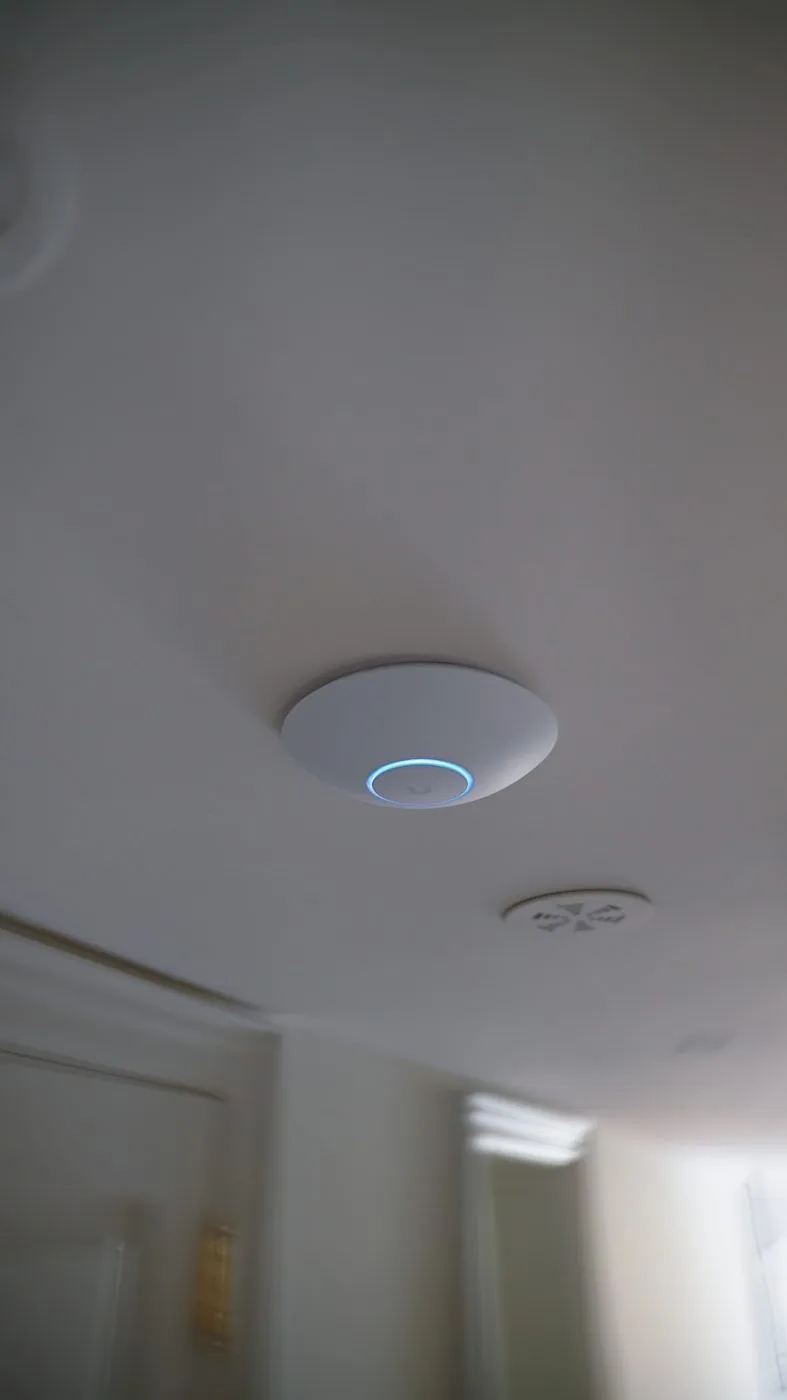
Each mesh point uses part of its WiFi to talk to the next one. Ubiquiti recommends no more than two wireless hops, and TP-Link says a wired link loses no speed to a wireless hop, which suits homes with several floors and thick walls. Wired access points usually sit on the ceiling, each with its own network cable. A mesh kit can also be wired part way: TP-Link notes that on its Deco mesh, the wired link only applies between the units that are cabled, and the rest keep using WiFi.
Building or renovating? Running cable is far easier while the walls are open. The pre-wire guide covers where it should go.
Mesh not enough in a plaster, brick or three floor home?
AVAS Automation installs wired WiFi access points and a clean rack, so every area gets its own strong signal. Call (416) 800-6714, or see our networking work.
Backyard, garage and the dock
Ordinary indoor WiFi is a bubble that covers the house and often stops near its walls, as eero puts it. The backyard and the garage are two of the most common places people want it, and they need a different fix.
- Keep indoor gear indoors. eero recommends keeping its indoor units inside and placing one near the wall closest to the outdoor space. Rogers says its pods may improve outdoor coverage when placed near windows or doors.
- Outdoor rated access points. For a patio or yard you use often, a weather rated access point on the house wall or under the soffit, fed by one network cable that carries both data and power, covers the space properly. eero suggests keeping its outdoor unit within about 15 metres (50 feet) of the nearest indoor one.
- Metal buildings. Apple rates metal as very high interference, its worst category, so WiFi from the house may barely reach inside a steel garage or shop.
- Separate buildings. Google says its mesh is not intended to stretch across multiple dwellings, and Canada's rules keep low power 6 GHz equipment from linking separate buildings. A detached garage or guest house is better served by a cable or a dedicated link between buildings.
- Digging and power. Running a cable underground means requesting a public utility locate first, through the Ontario Dig Authority, and waiting until every utility has responded before you dig. New outdoor power for an access point is electrical work, and in Ontario only a Licensed Electrical Contractor can be hired for it.
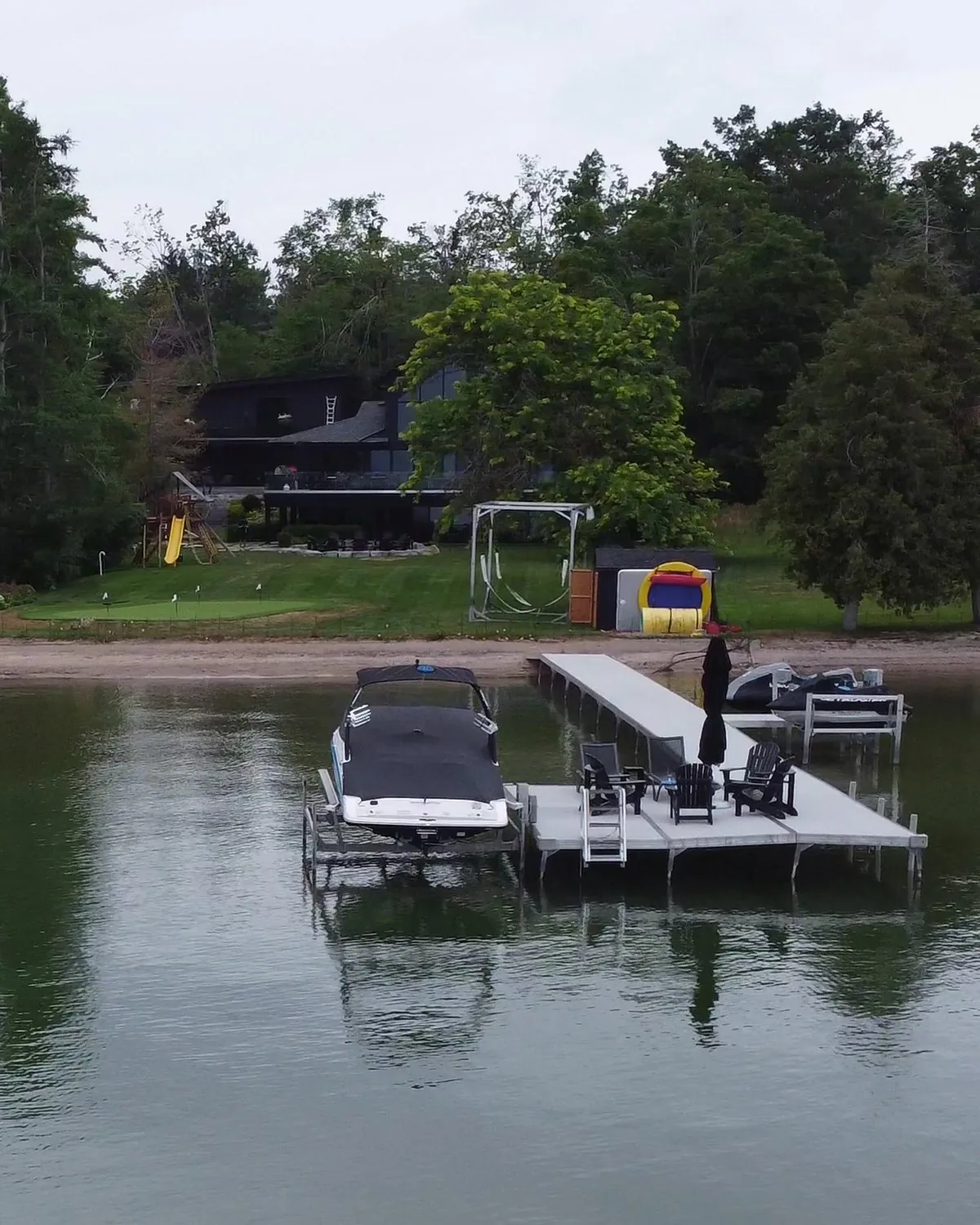
At the cottage, the cottage tech checklist covers getting WiFi all the way to the dock.
Cottages on Starlink
Starlink brings the internet to the cottage, but its router still has to reach every room. Starlink's own advice:
- Put the router on a table or shelf in the part of the cottage where you use your devices most, not in a cabinet, a media console or a closet.
- Keep it at least 6 metres (20 feet) from microwaves, refrigerators, metal, concrete and brick. In a cottage with dense walls, put it closer to a wood door.
- A Gen 2 router stands upright on its base, so if the WiFi drops suddenly, check it has not tipped over. Router 3 lies flat, and Router Mini stands on its kickstand.
- For more coverage, use Starlink's own mesh nodes, no more than two rooms apart. Starlink says more than three nodes on the main router can reduce performance. The Gen 1 router does not work with them, and neither do third party mesh systems.
- A wired connection to the router gives the best performance.
It worked if the Starlink app's Device to Router test is close to its router to internet test.
AVAS Automation sets up Starlink and WiFi to the dock for cottages. See Starlink and cottage WiFi.
Smart devices that will not connect
Many smart home devices, such as some smart plugs and remotes, only work on 2.4 GHz. Google says some smart home devices cannot use the 5 or 6 GHz bands at all, and Control4's own Neeo remote supports only 2.4 GHz networks.
- To set one up, your phone may need to be on 2.4 GHz too. The eero app can pause 5 and 6 GHz for 30 minutes so the device can join, and it stays connected after. If your phone cannot pick a band, Google suggests moving farther from the router until it switches to 2.4 GHz, then setting up the device.
- If it keeps dropping off at the front door, the garage or the edge of the yard, check the WiFi where it sits before you blame the device: it may simply be in a weak spot. 2.4 GHz reaches farthest but is also the busiest band, so a device at the edge gets the weakest, most crowded signal. A faster internet plan will not strengthen the WiFi there. Better coverage near the device will.
A Control4 remote or touchscreen acting up? The Control4 troubleshooting guide has the safe steps.
What about 6 GHz WiFi?
Canada opened the 6 GHz band to WiFi in May 2021, when Innovation, Science and Economic Development Canada allowed licence-exempt use of the 5925 to 7125 MHz band. Newer gear uses it, including the Rogers Xfinity Gateway (Gen 3) and Bell's Wi-Fi 6E pod.
It is fast and less crowded, which is great in the same room or the next one. It does not reach farther, though. Rogers says it works best for devices with a line of sight to the gateway, and Canada's rules keep low power 6 GHz equipment indoors and out of links between separate buildings. A new 6 GHz router alone will not fix a garage, a guest house or a dock.
When to call an installer
If one or two rooms are weak and the house is not plaster, brick or concrete throughout, a well placed mesh kit is often enough. It is time for wired access points, and usually an installer, when:
- You tried mesh, with points no more than two rooms apart, and rooms are still weak.
- Reaching the far end would take more than two mesh points in a row.
- The fix means cable through finished walls and ceilings.
- You want WiFi in a detached garage, a guest house or the yard.
- It is a cottage, with a dock or a bunkie to reach.
A good installer measures the signal in each room before mounting anything, then wires access points where the house needs them. AVAS Automation designs and installs home and cottage networks across Toronto, the GTA and cottage country.
What to write down before you call
- The two speed test numbers: beside the router and in the weak spot, same phone, WiFi only.
- Which rooms or places are weak, and on which floor.
- What the house is built of, if you know: plaster, brick, concrete, metal siding.
- Your modem or gateway model, and any extenders, pods or mesh points, with where each one sits.
- Where the modem has to stay, and whether it can move.
- Network jacks or TV coax outlets in the rooms that matter.
- The devices that must work in the weak spot: doorbell, cameras, garage opener, thermostat, remotes.
- How old your phones and laptops are.
- For a garage, guest house or dock: roughly how far it is from the house, what it is made of, and whether it has power.
- What has changed recently, and what you have already tried.
Tried the fixes and still have dead zones?
We can tell you plainly whether mesh will do or the house needs wired access points. Call (416) 800-6714 with this list, or have us call you back.
Already an AVAS client? Client support
Common questions
How do I test for a WiFi dead zone?
Use the same phone, on WiFi only, and run two speed tests: one beside the router and one in the weak spot. On an iPhone, turn off Connectivity Assist so it cannot use mobile data. The gap between the numbers is your WiFi problem. If both are slow, check the speed to the home in your provider's app.
Why does my WiFi not reach upstairs?
Floors block WiFi as well as walls, and many routers sit low, often in a basement, where the signal spreads mostly sideways. Move the router to the middle floor, raised and in the open, if the modem cable allows. If not, put a mesh point partway up, near the stairs, not inside the dead room.
How do I get WiFi in the basement?
The floor above the basement weakens WiFi, more so where metal ducts run through it, and routers send most of their signal sideways, not down. Put a mesh point at the top of the stairs, with an open path down. For a finished basement used daily, a wired access point in its ceiling is the steady fix.
How do I get WiFi in the backyard or garage?
Indoor WiFi is built to cover the house, and indoor gear should stay inside. Start with a mesh point near the wall or window closest to the yard. For a patio, a detached garage or a guest house, the steady fix is an outdoor rated access point, or a cable or point to point link to the building.
Is mesh WiFi better than an extender?
If more than one room is weak, usually yes. An extender repeats the router's signal and suits one weak room. Mesh points work as a team under one network name and app, and can be linked by cable. Every wireless hop costs speed with either, so place points halfway, not in the dead zone.
Will a faster internet plan fix my dead zones?
Usually not. Your plan sets the speed coming into the house, and the WiFi decides how much of it reaches each room. Rogers notes its app measures the total speed to the home, which can be higher than one phone sees in a weak spot. Fix the coverage first, then judge the plan.
Does 6 GHz WiFi fix dead zones?
Not on its own. Canada opened the 6 GHz band to WiFi in May 2021, and it is fast with little interference, but it does not reach as far as 2.4 GHz and works best with a clear line of sight. Canada's rules keep low power 6 GHz equipment indoors and out of links between separate buildings.
Sources
- Apple: Potential sources of Wi-Fi and Bluetooth interference
- Apple: Connectivity Assist on iPhone
- Apple: Recommended settings for Wi-Fi routers
- eero: Where to place your eeros
- eero: 2.4, 5 and 6 GHz bands
- eero: Point to point links
- Google: Where to place your Wifi points
- Google: Test your mesh connection
- Google: Wi-Fi bands and smart home devices
- Rogers: Where to put your modem
- Rogers: One WiFi name and password
- Rogers: Test your internet speed and WiFi
- Rogers: Optimize your WiFi
- Rogers: WiFi Boost pods
- Bell: Internet speed test
- Bell: Whole home Wi-Fi pods
- TP-Link: Wired backhaul for Deco
- TP-Link: Where to place a WiFi extender
- TP-Link: Powerline adapters and power bars
- Ubiquiti: Wireless meshing
- Starlink: Improve your Wi-Fi
- Starlink: Mesh troubleshooting
- Control4: Neeo remote FAQ
- ISED: Licence-exempt use of the 6 GHz band
- ISED: RSS-248, Issue 3
- Ontario Dig Authority: Locates
- Electrical Safety Authority: Who can do electrical work